


Buying Guide
Connectivity Standards: Thunderbolt vs USB-C vs DisplayLink
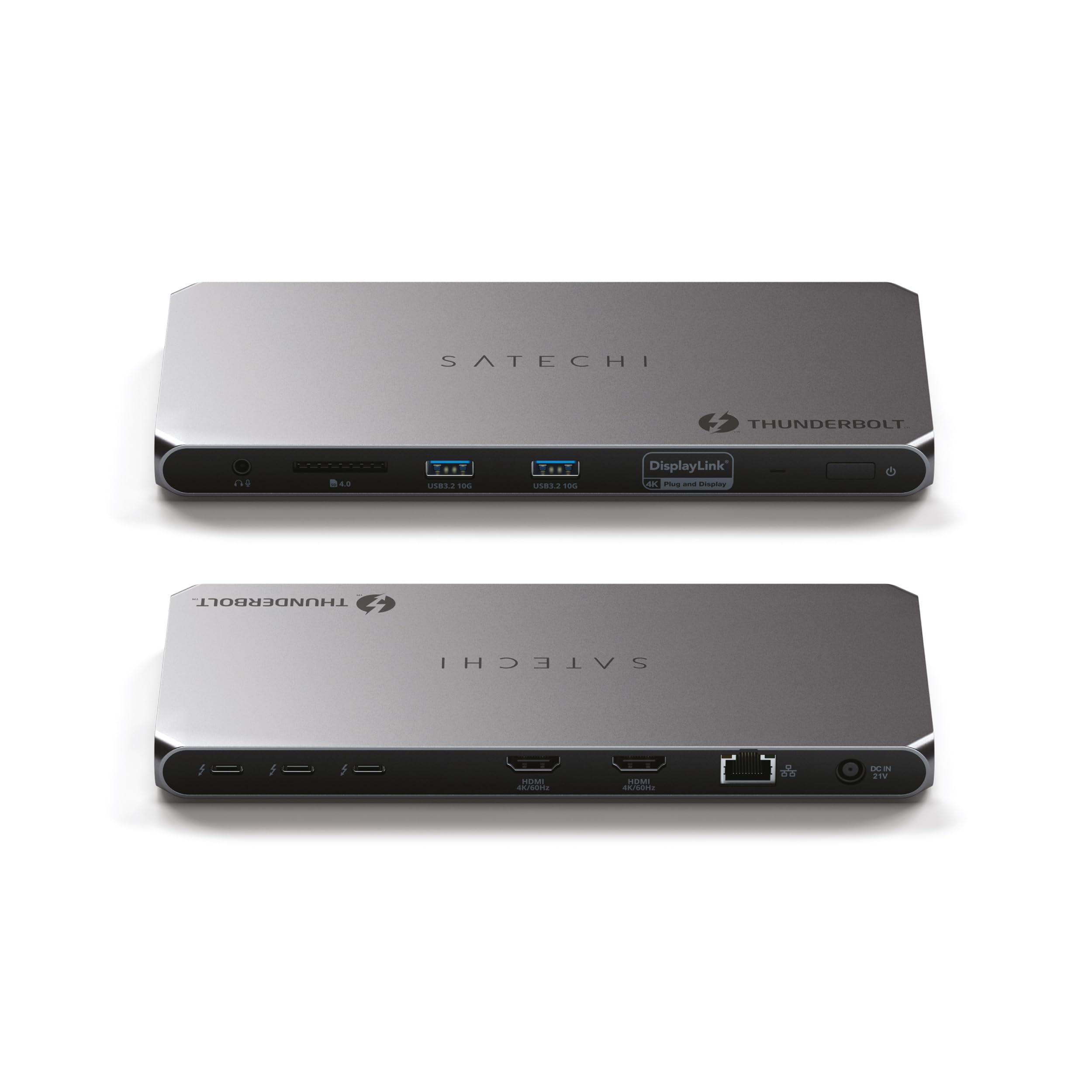
Understanding connectivity standards determines everything from display capabilities to charging speeds. Thunderbolt 4 delivers 40 Gbps bandwidth and can drive two 4K displays at 60Hz while providing 100W power delivery. The newer Thunderbolt 5 doubles that to 80 Gbps, supporting three 4K displays or one 8K monitor, though docks using this standard start around $400.
Standard USB-C docks operate at 10-20 Gbps depending on the USB version, limiting you to one 4K display at 60Hz or two 1080p monitors. Power delivery typically caps at 100W, sufficient for most laptops but not workstation-class machines requiring 140W or more. These docks cost $100-250, making them attractive for basic setups.
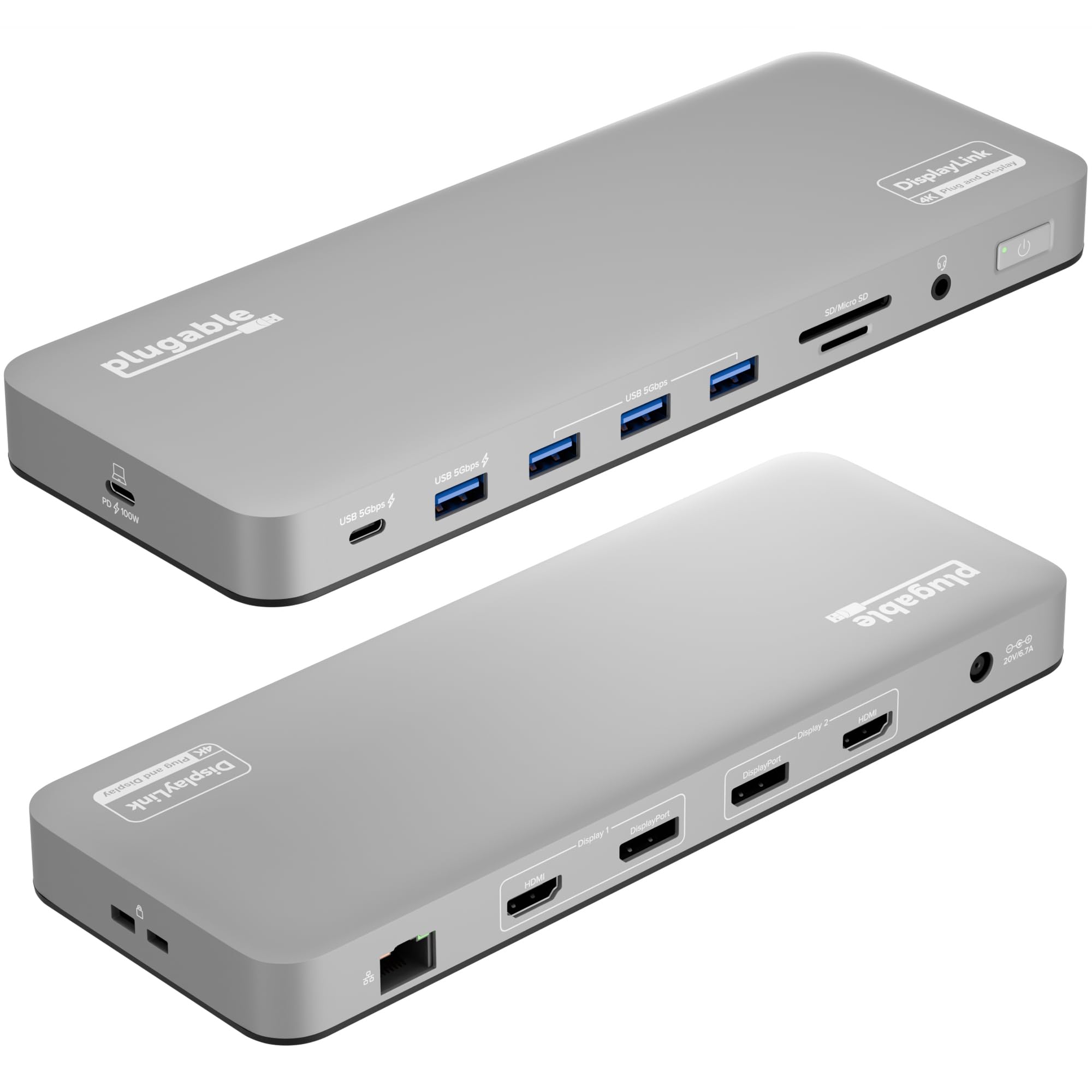
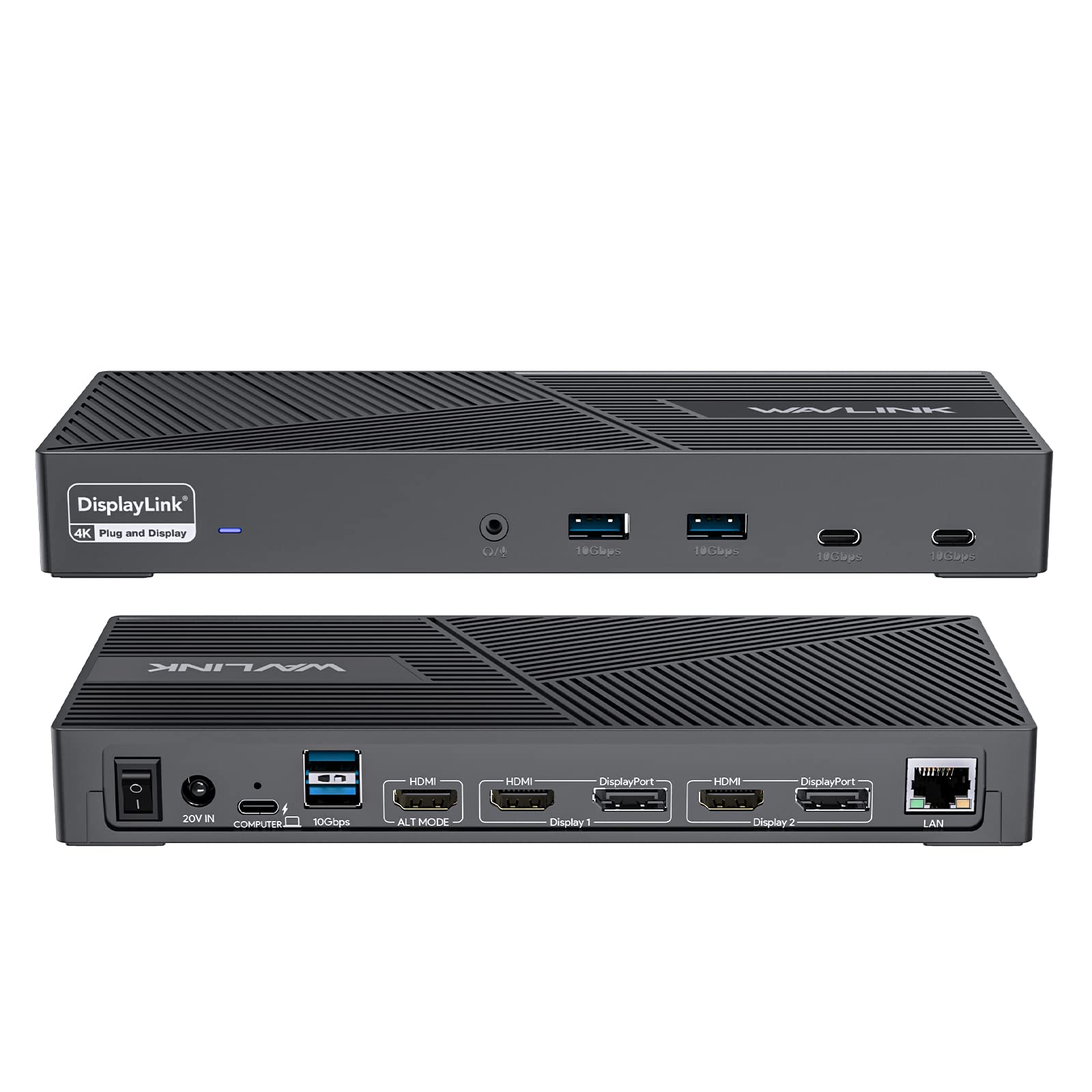
DisplayLink technology bypasses bandwidth limitations by compressing video data and using software drivers. This allows multiple high-resolution displays even on older USB-C ports, but introduces slight latency that makes it unsuitable for gaming or video editing. DisplayLink docks handle office work excellently and cost $150-300.
Your laptop’s ports dictate compatibility. MacBooks with M-series chips support fewer external displays than their Intel predecessors, regardless of dock capabilities. Windows laptops vary widely, with some supporting four displays while others max out at two. Check your laptop’s specifications before assuming a dock’s maximum display count applies to your setup.
Display Support and Power Delivery Requirements
Calculate your display needs by counting monitors and noting their resolutions and refresh rates. A dual 4K 60Hz setup requires at least Thunderbolt 4, while three 1440p displays can work with high-speed USB-C. Gaming setups demanding 144Hz refresh rates need Thunderbolt connectivity for reliable performance.
Power delivery ratings must exceed your laptop’s charging requirements. Most ultrabooks need 65-100W, but gaming laptops and workstations often require 130-240W. A 96W dock charges a MacBook Pro adequately but won’t fully power a Dell XPS 17 under heavy load. Check your laptop’s original charger wattage as your baseline requirement.
Popular laptop power requirements vary significantly. MacBook Air models charge with 30-70W, MacBook Pros need 67-140W depending on screen size, and Dell XPS laptops range from 65-130W. Lenovo ThinkPads typically require 65-170W, while gaming laptops from ASUS or MSI often need 180-330W, far exceeding most dock capabilities.
Consider charging speed versus convenience. A 65W dock might slowly charge your 100W laptop during light use but won’t maintain battery levels during intensive tasks. This creates a choice between carrying your original charger for demanding work or accepting slower charging for the convenience of single-cable connectivity.
Port Selection and Future-Proofing Considerations
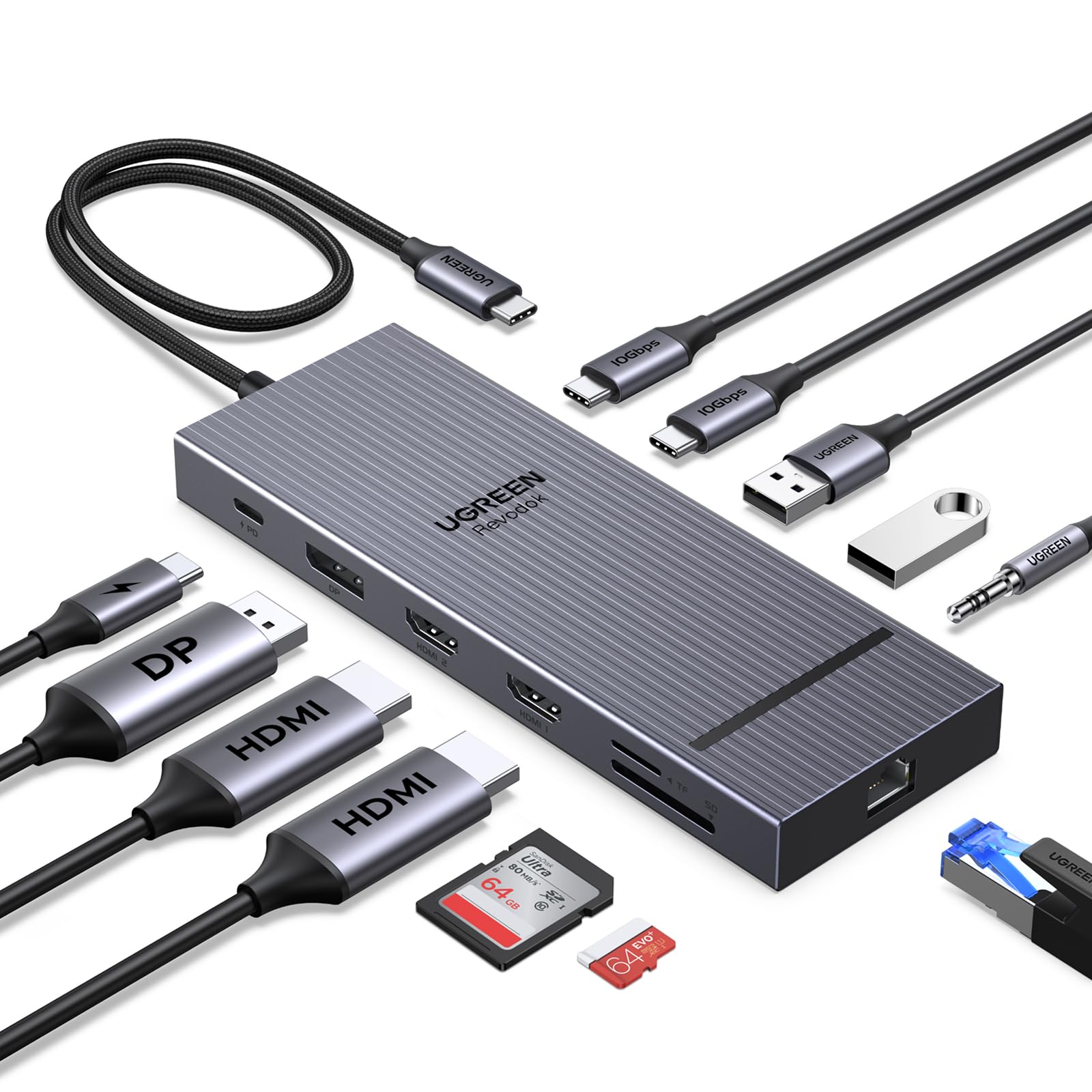
Inventory your current peripherals and consider future additions. Most users need 2-4 USB-A ports for existing devices like mice, keyboards, and external drives, plus 1-2 USB-C ports for newer accessories. SD card slots matter for photographers, while Ethernet ports provide reliable network connections for video calls and large file transfers.
Audio jacks seem minor until you need them. Many docks include 3.5mm outputs that bypass laptop audio processing, sometimes improving sound quality for wired headphones. However, this requires remembering to switch audio outputs when docking and undocking.
Future-proofing involves balancing current needs with emerging standards. Thunderbolt 5 docks cost significantly more but support higher display counts and faster data transfer. USB4 provides similar capabilities at lower prices, though adoption remains limited in 2026.
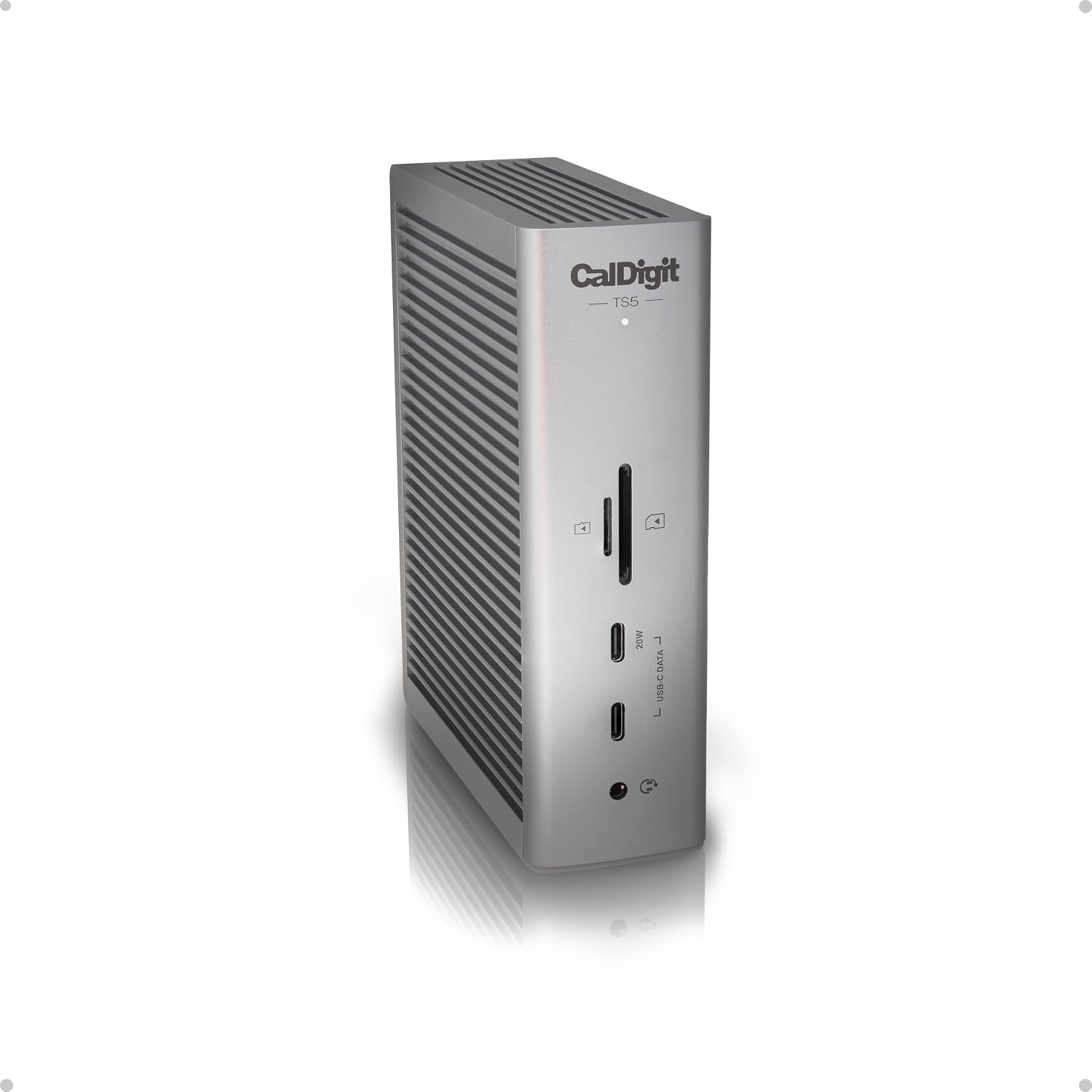
Desk space constraints influence port placement and dock size. Vertical docks save horizontal space but make cable management more challenging. Horizontal docks integrate better with monitor stands but consume more desk real estate. Consider your workspace layout when choosing between compact 6-port docks and expansive 12-port models.
Budget Tiers and Decision Framework
Budget allocation should reflect your actual usage patterns. Basic $100-150 docks handle dual displays and standard peripherals adequately for remote workers using video calls and office applications. Mid-range $200-300 options add Thunderbolt connectivity and higher power delivery for creative professionals managing multiple high-resolution displays. Premium $400+ docks justify their cost only if you need maximum display counts, fastest data transfer, or specialized ports like 10Gb Ethernet.
Follow this decision process: assess your current setup’s limitations, identify specific pain points like insufficient ports or slow charging, then match requirements to dock capabilities rather than specifications. A $150 USB-C dock solves most connectivity issues without Thunderbolt’s premium pricing.
Consider your upgrade timeline when budgeting. Purchasing a capable dock now prevents replacement costs when adding monitors or upgrading laptops. However, avoid over-buying features you won’t use within two years, as dock technology evolves rapidly and prices decrease over time.
Final Verdict
Your ideal docking station depends entirely on your laptop’s capabilities and workflow demands. Premium users with modern laptops should invest in Thunderbolt 5 docks for future-proofing, especially if you plan to upgrade hardware in the next few years. These $300-400 options deliver 80Gbps bandwidth and support for 8K displays, making them worthwhile for professionals handling video editing or CAD work.
Budget-conscious buyers can find excellent value in DisplayLink-powered stations starting around $80-120. While they can’t match Thunderbolt’s raw performance, DisplayLink technology enables multiple monitor support on virtually any laptop with USB-A or USB-C ports. Perfect for office workers who prioritize connectivity over bandwidth-intensive tasks.
Mac users must stick with certified Thunderbolt docks to avoid compatibility headaches. Apple’s strict hardware requirements mean cheaper alternatives often fail to deliver consistent performance or cause kernel panics.
Consider your monitor setup first, then work backward to find compatible docks. A single 4K display needs far less bandwidth than dual 4K or ultrawide configurations.